
- How To Install the Astra Theme
- System Requirement for Astra Theme
- What Is a Child Theme and How To Install It for Astra?
- Manually Install Astra via FTP
- How to Update Astra Theme Manually?
- Automatic Beta Updates for Astra
- Astra 4.2.0-beta.1 : Migrations & Backwards Compatibility
- Know More about Astra Beta Versions? How to Download and Use?
- How to Create a Multisite Network and Use Astra Child Theme On It
- Getting Started with Astra Pro Addon Plugin
- What is Astra Pro Add on?
- How to Install Astra Pro Plugin?
- How to Get License Key of Astra Pro?
- How to Activate Astra Pro Addon License?
- How to Fix “The Package Could Not Be Installed. The Theme Is Missing the style.css Stylesheet” Error
- Why Can’t I Access Astra Pro Features After Purchasing the Pro Version?
- Do Not See License Activation Form for Astra Pro Addon Plugin?
- How to Fix “Sorry, You Are Not Allowed To Access This Page” Error In Astra Pro
- How to Download Your Purchase Invoice
- How to Manage License on Store?
- How Do License Upgrades Work?
- How To Update Your Payment Method?
- How to Process Refund Requests?
- How to Apply For Brainstorm Force Affiliate Program? (Become Astra Affiliate)
- Frequently Asked Questions – VIP Priority Support
- How do I check my Support Ticket History?
- How To Create a Header With Astra Header Builder
- How To Create Mobile Header With Astra Header Builder
- Why Is My Logo Blurry?
- Astra – Customize the Submenu
- FAQs – Astra Header/Footer Builder
- Elements in Header/Footer Builder With Astra Theme and Astra Pro
- Add Multiple Elements in Header Footer Builder
- FAQs – Astra Header/Footer Builder – Existing Customers
- Clone Elements in Header Footer Builder
- How To Manage Sidebars in Free Astra Theme
- Understanding Sidebar Style in Astra Theme: Customizing Your Sidebar’s Look
- Sticky Sidebar
- Scroll To Top
- How to Display a Breadcrumb Anywhere within a Page or Post with Shortcode?
- Find the Way With Breadcrumbs
- How to Change the “HOME” String in Breadcrumbs
- How to Switch From Existing Breadcrumb to New Trail?
- How To Add Breadcrumbs in WordPress Website with Astra
- Blog Overview
- Blog / Archive
- Single Post
- Display Related Posts on Single Blog Post
- How to remove an Author’s name from a Single Blog Post?
- How to Remove Astra Post Excerpt from the Post Archive
- Show “Last Updated” or “Published Date” on Blog
- The Recommended Size for Featured Image
- How to add a Blog page banner/title with Astra
- How to Keep Accordion Closed for Single Product Description
- How to Change the Heading Tag for WooCommerce Product Titles in Astra
- Astra WooCommerce Mini Cart Shortcode
- WooCommerce Module Overview
- How to Design a Product Catalog Page or Shop Page Using WooCommerce Module in Astra?
- Single Product WooCommerce
- Checkout Page WooCommerce
- Colors & Background Options For WooCommerce
- Typography Options for WooCommerce
- How to Disable EDD Inbuilt Styling?
- How to Add Download Archive Pages to the Menu When Using Astra with EDD?
- How to Add EDD Cart in Header? (Old Astra Header)
- How to Display a Mini Cart Anywhere Using Shortcode? (Astra and EDD)
- EDD – Easy Digital Downloads Module Overview
- General – EDD Module Options
- Product Archive – EDD Module Options
- Single Product – EDD Module Options
- Checkout Page – EDD Module Options
- Footer Custom Text Helper Strings
- How To Disable Right Click in WordPress
- Increasing the PHP Memory Limit of Your Website
- How To Disable Header or Footer for a Landing Page or Post
- Where Does Astra Primary Color Setting Take Effect?
- How To Adjust the Width of Your Sidebar
- How to Update the Plugin Manually from WordPress Backend?
- Recommended Settings for Elementor and the Astra Theme
- Recommended Settings for Beaver Builder and the Astra Theme
- How To Translate Site Builder With WPML?
- How To Make Astra Multilingual With WPML
- How to Translate Astra Strings with WPML?
- Translating the Advanced Custom Fields with WPML
- How to Turn Astra Website Multilingual with Polylang?
- How to Translate Categories, Tags, and Astra Strings with Polylang
- How to Turn Astra Website Multilingual with TranslatePress?
- How to Translate Astra Theme / Plugins in Your Own Language using GlotPress?
- Translate Site Builder Layouts Using Polylang
- Fix for – The PCLZIP_ERR_BAD_FORMAT (-10) Error
- Host Google Fonts Locally – Performance Is the Key
- Fix for – Parse error: syntax error, unexpected T_FUNCTION
- How to fix Fatal Error / White Screen of Death?
- Fix for- cURL error 51: SSL: no alternative certificate subject name matches target host name ‘websitedemos.net’
- ‘The preview could not be loaded’ Pop Up with Astra and Elementor
- Troubleshooting Steps ( with Health Check & Troubleshooting plugin )
- How to Deal with Update Issues in Astra Theme and Astra Pro Addon?
- Blog Featured Image Size Not Working / Error in Image Processing Library
- How to Change the Default Astra Strings
- Using Hooks in Astra
- How to Change the “Scroll To Top” Icon in Astra?
- Astra Pro WP CLI Commands
- How to Add Custom PHP Code?
- How to Disable the Loading of Astra’s Default Font File? (Astra.woff)
- Disable Featured Image on Posts, Pages, or Other Post Types
- Change Sidebar Widget Title Heading Tag
- Disable All Meta Settings of Page or Post by Default
- How to Change Website Logo Destination URL
- Remove Primary Navigation Menu with Hook
- Change the Astra Header Breakpoint Width
- How to Disable Primary Header?
- Add Title attribute to Header Background Image as a Substitute for Alt Text
- How to Change HTML tag for Site Title and Tagline?
- How to Change the Heading Tag for the Page/Post Titles?
- How to Change the “Search Results For” String
- Change Placeholder for Search Box (Old Astra Header)
- How to Change Previous and Next Link Text from a Single Blog Post?
- How to Remove Featured Image Link on Archive Page?
- Filter to Remove Link From Featured Images on Blog Page
- Blog Featured Image Size Not Working / Error in Image Processing Library
- Filters to Support CPTs for Blog Meta and Single Blog Meta
- How To Change Navigation Links Text for a Blog Archive?
- How to Display the Post Category as a Related Posts Title?
- Change “Leave A Comment” title tag
- Customizing Social Profile Links for Individual Authors in Single Posts
- Change Woocommerce Out of Stock Text
- How to Modify/Change the Quick View text?
- Filter to Add Global Button Settings Support for WooCommerce Buttons
- Change the “Shopping Cart” Text for WooCommerce & EDD Mobile Header Cart
- Fix Woocommerce Cart Becoming Transparent With Header Builder
- Restrict Search Results to WooCommerce Products Only
- How To Hide Quantity Number When the Woocommerce Cart Is Empty?
- Remove Astra Customization for WooCommerce
- Remove Woocommerce Product Category Archive Title
- How to Add Custom CSS Code Without Editing Theme Files?
- How to Highlight a Certain Menu Item?
- How to Design Bullets & Lists?
- Dim Content on Menu Hover
- How to add custom CSS and JavaScript to Astra theme
- How To add Custom CSS for Specific Pages
- How to Create Custom CSS using Inspect Element Tool?
- Display Coupon Field on Checkout & Cart Pages
- Always Show Order Summary on Mobile (Astra Modern Checkout)
- Fix Swap Sections Not Working on Mobile (Old Astra Header)
- How to Remove Google Fonts Suggestions in Astra Theme?
- Remove default stretched block layout spacing
- How to Change the Logo on Specific Pages?
- How to remove horizontal & vertical gallery layouts from a single product page?
- Introducing New Filter to Enable/Disable Rank-Math Theme Support
- Enable/Disable YouTube videos from Astra admin dashboard
- How to Fix the Line Height Unit being converted to “EM”?
- How to Change WordPress Post labels to Projects
Troubleshooting – Mega Menu Alignment
This guide helps with the alignment of the Mega Menu when using different widths (Content, Custom, Full Width or Menu Container). Depending upon the mega menu width, it may appear shifted to one side instead of centered especially when the Custom width option is used. This document covers why this happens and how to fix it.
Note: This feature requires Astra Pro. If you have not purchased Astra Pro yet, you can Upgrade here to get complete access to Astra Pro modules and create a beautiful Mega Menu.
Mega Menu Width Options
When you create a mega menu with Astra Pro Nav Menu module, you get several customization options to make a beautiful mega menu without any external plugin. One of the options here is to control the mega menu width.
While enabling the mega menu for any menu item, you get the following width options:
- Content – Mega menu remains under the website content width and appears in the center
- Menu Container Width – Dropdown match theme’s nav container width – not full viewport, not just content size.
- Full Width – Dropdown span 100% viewport width, but stay inside normal document flow (positioned relative to nearest block)
- Full Width Stretched – Same 100% width, but “stretched” – break out of parent container edge-to-edge regardless of theme container/padding.
- Custom – Apply a custom width for the mega menu in the range of 1px – 1920px
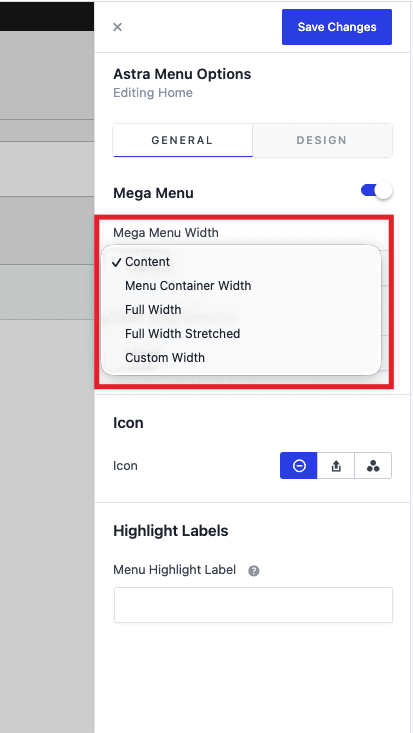
- In case of Content, Full Width and Full Width Stretched width, the mega menu container appears in the center aligned without any issues.
- The Menu Container width enables the mega menu to appear according to the main menu width and it appears below the main menu itself.
- Custom width allows you to apply a custom width and the mega menu alignment is applied according to the default submenu behavior.
Depending on the mega menu width, the custom width may cause the mega menu container to appear more towards left or right rather than being in the center. The guide below helps you to fix the alignment so it appears in the center.
Mega Menu with Custom Width Appears Off-Center
Symptom: After setting the mega menu width to Custom in the Astra Menu Settings and entering a pixel value, the mega menu panel opens shifted to the left or right instead of appearing centered within the content area.
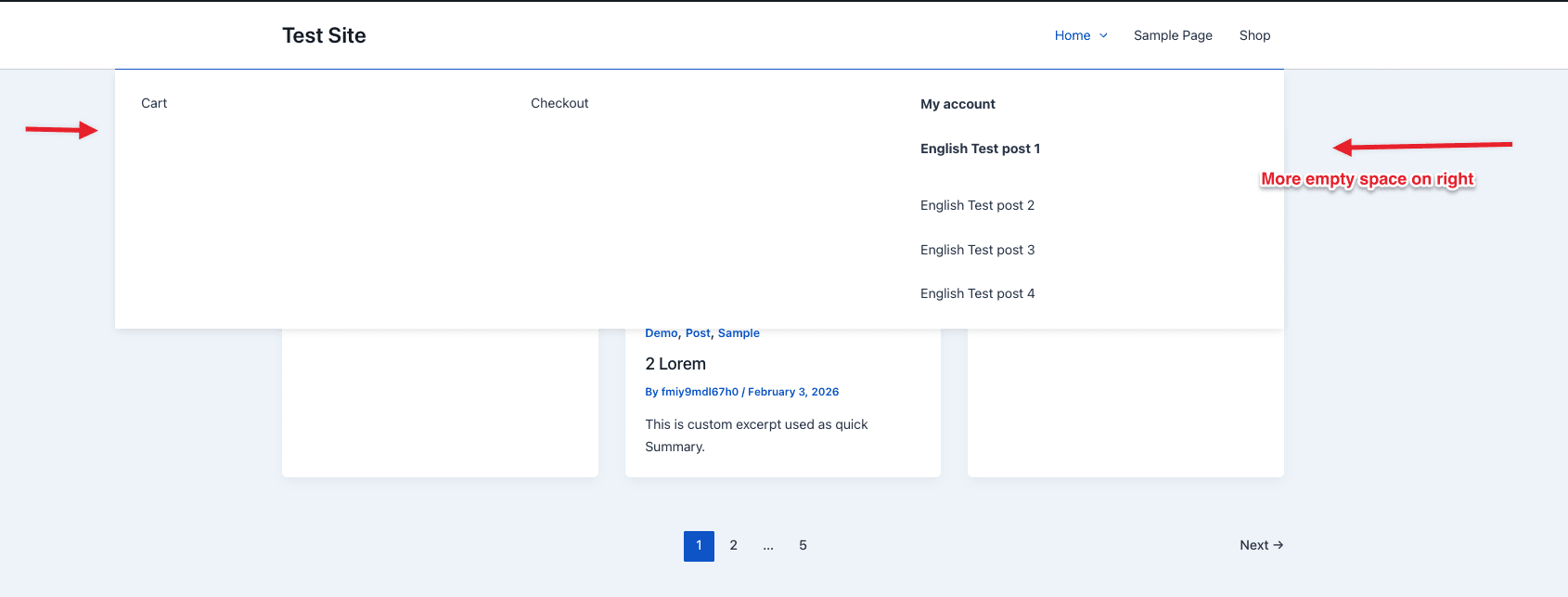
Cause: When Custom width is selected, the positioning calculation does not split the leftover space evenly on both sides, causing the panel to anchor to one edge of the content area instead of centering. This is intentional to avoid the large horizontal gap below the main menu item that may end up cursor hovering issues into the mega menu container.
Before You Begin
This section covers a few checks to rule out other causes before applying the fix below.
- Clear your site cache and browser cache.
- Confirm you are running the latest versions of both the Astra theme and Astra Pro Addon.
- Verify that no custom CSS is overriding the mega menu position (check WordPress Dashboard → Appearance → Customize → Additional CSS for any rules targeting .astra-megamenu-li or .astra-mega-menu-width-custom).
How to Fix and Align the Mega Menu to Center with Custom Width:
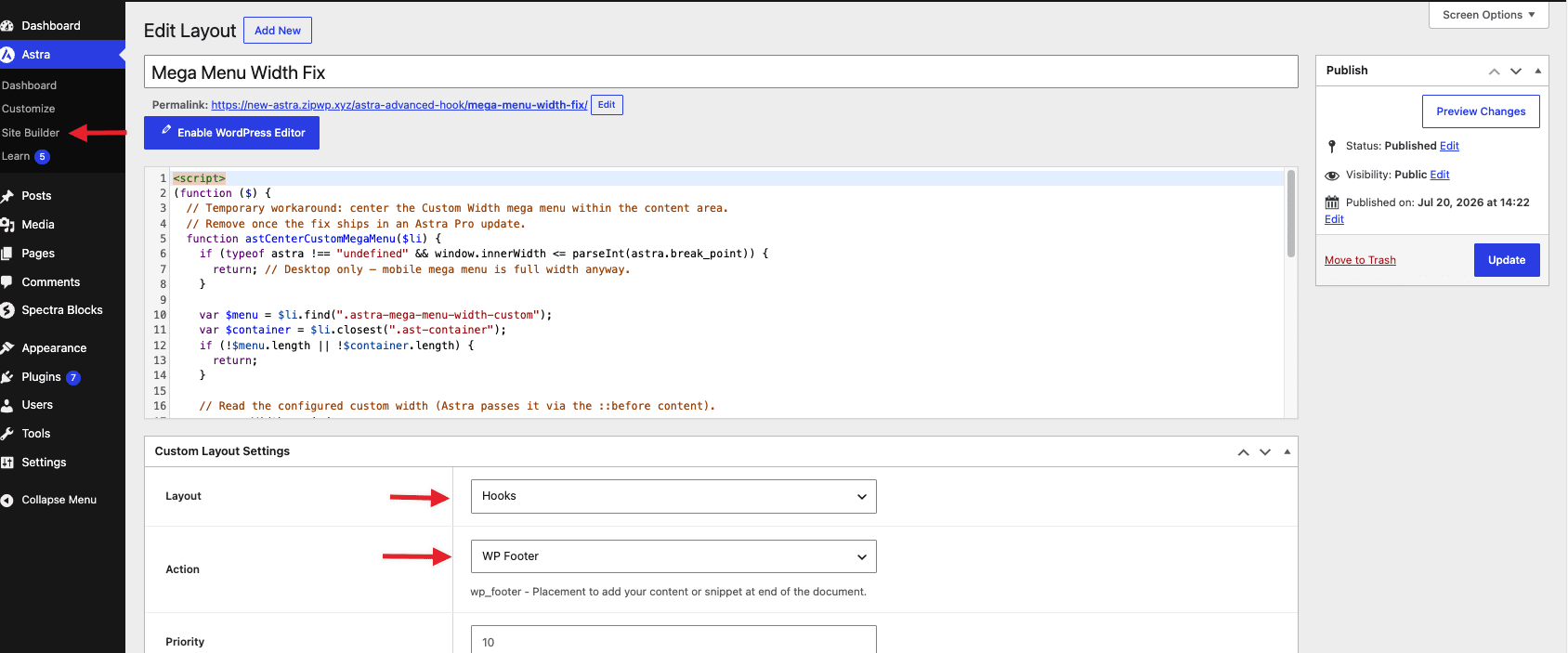
If you are looking to center the mega menu when using a custom width value, you can add the following JS snippet to the website using the Site Builder Code Editor module or any Code Snippet plugin.
<script>
(function ($) {
	// Center the Custom Width mega menu within the content area.
	// Remove once the fix ships in an Astra Pro update.
	function astCenterCustomMegaMenu($li) {
		if (typeof astra !== "undefined" && window.innerWidth <= parseInt(astra.break_point)) {
			return; // Desktop only — mobile mega menu is full width anyway.
		}

		var $menu = $li.find(".astra-mega-menu-width-custom");
		var $container = $li.closest(".ast-container");
		if (!$menu.length || !$container.length) {
			return;
		}

		// Read the configured custom width (Astra passes it via the ::before content).
		var menuWidth = window
			.getComputedStyle($menu[0], "::before")
			.getPropertyValue("content")
			.replace(/[^0-9]/g, "");
		menuWidth = parseInt(menuWidth) || $menu.outerWidth();

		var containerOffset = $container.offset(),
			paddingLeft = parseFloat($container.css("paddingLeft")) || 0,
			contentWidth = $container.width(),
			contentLeft = containerOffset.left + paddingLeft,
			desiredLeft = contentLeft + (contentWidth - menuWidth) / 2;

		$menu.css({
			left: parseInt(desiredLeft - $li.offset().left) + "px",
			right: "auto",
			width: menuWidth + "px"
		});
	}

	$(document).on("mouseenter focusin", ".astra-megamenu-li.custom-width-mega", function () {
		var $li = $(this);
		// Run after Astra's own positioning handler.
		setTimeout(function () {
			astCenterCustomMegaMenu($li);
		}, 0);
	});
})(jQuery);
</script>
You can add the above code via the Site Builder Code Editor Hooks and set to display in the website Footer.
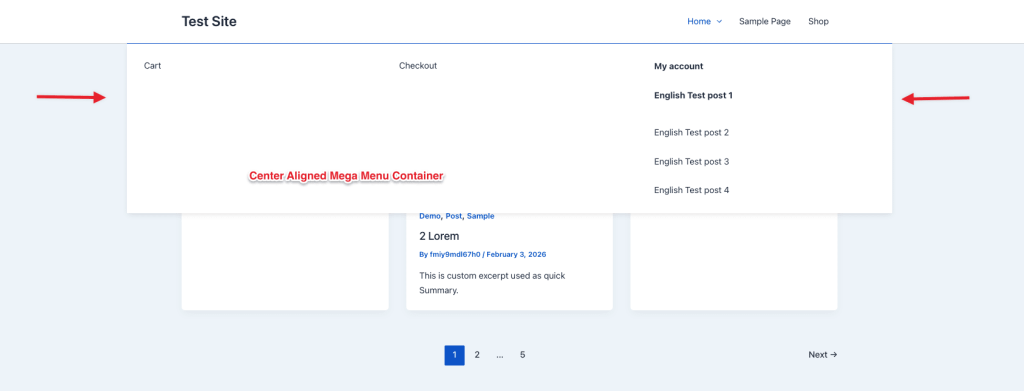
After adding the code and clearing your site cache, hover over any mega menu item that uses the Custom width setting. The mega menu panel should now appear centered within the content area, regardless of whether the custom width is smaller or larger than the content width.
Important Points
This section covers a few things to keep in mind when using the workaround above.
- This snippet applies to desktop viewports only. On mobile, the mega menu defaults to full-width behavior regardless of the custom width setting, so no adjustment is needed.
- The snippet overrides the mega menu position after Astra’s built-in positioning runs. If a future Astra Pro update changes the mega menu positioning logic, this snippet may no longer be necessary. Check the Astra Pro changelog after updates, and remove the Hooks layout if the centering behavior is fixed natively.
- If the custom width value entered is wider than the browser viewport, the mega menu may overflow the visible area on both sides. This is expected behavior for any centered element wider than its container.
- The alignment change is not recommended for the mega menu width very less custom width if the main menu is right aligned. The centered panel lands in the middle of the container, there’ll be a large horizontal gap between the trigger and the panel, the hover is lost in that gap and you likely won’t be able to move the cursor into the mega menu at all.
Frequently Asked Questions
Q: Why does the Content width option center correctly but Custom does not?
A: The Content width option sets the mega menu panel to match the site’s content area exactly, so both edges line up with the container automatically. Custom width uses a different pixel value, and the built-in positioning logic does not distribute the leftover space evenly, causing the panel to anchor to one side.
Q: Can this snippet be added with a code snippets plugin instead of Site Builder?
A: Yes. Any plugin that allows inserting custom JavaScript into the site’s frontend (such as WPCode or Code Snippets) works as an alternative. Paste the same <script> block and set it to load on the frontend across all pages.
We hope the above information has been helpful. If you face any issues or need some help, please do not hesitate to reach out to our support team.
We don't respond to the article feedback, we use it to improve our support content.