
- How To Install the Astra Theme
- System Requirement for Astra Theme
- What Is a Child Theme and How To Install It for Astra?
- Manually Install Astra via FTP
- How to Update Astra Theme Manually?
- Automatic Beta Updates for Astra
- Astra 4.2.0-beta.1 : Migrations & Backwards Compatibility
- Know More about Astra Beta Versions? How to Download and Use?
- How to Set Up a WordPress Multisite Network and Use an Astra Child Theme
- Getting Started with Astra Pro Addon Plugin
- What is Astra Pro Add on?
- How to Install Astra Pro Plugin?
- How to Get License Key of Astra Pro?
- How to Activate Astra Pro Addon License?
- How to Fix “The Package Could Not Be Installed. The Theme Is Missing the style.css Stylesheet” Error
- Why Can’t I Access Astra Pro Features After Purchasing the Pro Version?
- Do Not See License Activation Form for Astra Pro Addon Plugin?
- How to Fix “Sorry, You Are Not Allowed To Access This Page” Error In Astra Pro
- How to Download Your Purchase Invoice
- How to Manage License on Store?
- How Do License Upgrades Work?
- How To Update Your Payment Method?
- How to Process Refund Requests?
- How to Apply For Brainstorm Force Affiliate Program? (Become Astra Affiliate)
- Frequently Asked Questions – VIP Priority Support
- How do I check my Support Ticket History?
- How To Create a Header With Astra Header Builder
- How To Create Mobile Header With Astra Header Builder
- Why Is My Logo Blurry?
- Astra – Customize the Submenu
- FAQs – Astra Header/Footer Builder
- Elements in Header/Footer Builder With Astra Theme and Astra Pro
- Add Multiple Elements in Header Footer Builder
- FAQs – Astra Header/Footer Builder – Existing Customers
- Clone Elements in Header Footer Builder
- How To Manage Sidebars in Free Astra Theme
- Understanding Sidebar Style in Astra Theme: Customizing Your Sidebar’s Look
- Sticky Sidebar
- Scroll To Top
- How to Display a Breadcrumb Anywhere within a Page or Post with Shortcode?
- Find the Way With Breadcrumbs
- How to Change the “HOME” String in Breadcrumbs
- How to Switch From Existing Breadcrumb to New Trail?
- How To Add Breadcrumbs in WordPress Website with Astra
- Blog Overview
- Blog / Archive
- Single Post
- Display Related Posts on Single Blog Post
- How to remove an Author’s name from a Single Blog Post?
- How to Remove Astra Post Excerpt from the Post Archive
- Show “Last Updated” or “Published Date” on Blog
- The Recommended Size for Featured Image
- How to add a Blog page banner/title with Astra
- How to Keep Accordion Closed for Single Product Description
- How to Change the Heading Tag for WooCommerce Product Titles in Astra
- Astra WooCommerce Mini Cart Shortcode
- WooCommerce Module Overview
- How to Design a Product Catalog Page or Shop Page Using WooCommerce Module in Astra?
- Single Product WooCommerce
- Checkout Page WooCommerce
- Colors & Background Options For WooCommerce
- Typography Options for WooCommerce
- How to Disable EDD Inbuilt Styling?
- How to Add Download Archive Pages to the Menu When Using Astra with EDD?
- How to Add EDD Cart in Header? (Old Astra Header)
- How to Display a Mini Cart Anywhere Using Shortcode? (Astra and EDD)
- EDD – Easy Digital Downloads Module Overview
- General – EDD Module Options
- Product Archive – EDD Module Options
- Single Product – EDD Module Options
- Checkout Page – EDD Module Options
- Footer Custom Text Helper Strings
- How To Disable Right Click in WordPress
- Increasing the PHP Memory Limit of Your Website
- How To Disable Header or Footer for a Landing Page or Post
- Where Does Astra Primary Color Setting Take Effect?
- How To Adjust the Width of Your Sidebar
- How to Update the Plugin Manually from WordPress Backend?
- Recommended Settings for Elementor and the Astra Theme
- Recommended Settings for Beaver Builder and the Astra Theme
- How To Translate Site Builder With WPML?
- How To Make Astra Multilingual With WPML
- How to Translate Astra Strings with WPML?
- Translating the Advanced Custom Fields with WPML
- How to Turn Astra Website Multilingual with Polylang?
- How to Translate Categories, Tags, and Astra Strings with Polylang
- How to Turn Astra Website Multilingual with TranslatePress?
- How to Translate Astra Theme / Plugins in Your Own Language using GlotPress?
- Translate Site Builder Layouts Using Polylang
- Fix for – The PCLZIP_ERR_BAD_FORMAT (-10) Error
- Host Google Fonts Locally – Performance Is the Key
- Fix for – Parse error: syntax error, unexpected T_FUNCTION
- How to fix Fatal Error / White Screen of Death?
- Fix for- cURL error 51: SSL: no alternative certificate subject name matches target host name ‘websitedemos.net’
- ‘The preview could not be loaded’ Pop Up with Astra and Elementor
- Troubleshooting Steps ( with Health Check & Troubleshooting plugin )
- How to Deal with Update Issues in Astra Theme and Astra Pro Addon?
- Blog Featured Image Size Not Working / Error in Image Processing Library
- How to Clear Astra’s Cache?
- Gutenberg Plugin Causing Issues With the Astra Customizer
- How To Improve CLS For the SVG Logo?
- How To Fix Horizontal Scrollbar on Mobile When Using Elementor?
- How Do You Roll Back to a Previous Astra Version
- What To Do When Product Count Is Not Visible on Mini Cart With Astra Pro?
- How to Resolve Repeater Fields Not Working in Widget Block Editor?
- How to check JavaScript errors/conflicts?
- Mixed Content
- SVG Icon
- Uploaded file exceeds the upload_max_filesize directive in php.ini
- Fix the “Ensure Text Remains Visible During Web Font Load” Error In Astra
- Basic Debugging Steps of WordPress
- Whitelisting Astra Licensing Server From Your Hosting Firewall
- Troubleshooting Common License Activation Issues
- Troubleshooting: “The Response Is Not a Valid JSON Response”
- Fix Hidden Title on WooCommerce and Other Pages When an Elementor Template Is Used
- How to Resolve Fatal Error: Call to Undefined function ctype_xdigit()
- How to Enable Debugging in WordPress (Debug Mode)
- How to improve the CLS score with the Astra theme
- Improving Website Speed When Using Astra With Elementor
- How to Reset Astra customizer
- Astra Customizer Strings Reverting to Wrong Language with WPML
- How to Change the Default Astra Strings
- Using Hooks in Astra
- How to Change the “Scroll To Top” Icon in Astra?
- Astra Pro WP CLI Commands
- How to Add Custom PHP Code?
- How to Disable the Loading of Astra’s Default Font File? (Astra.woff)
- Disable Featured Image on Posts, Pages, or Other Post Types
- Change Sidebar Widget Title Heading Tag
- Disable All Meta Settings of Page or Post by Default
- How to Change Website Logo Destination URL
- Remove Primary Navigation Menu with Hook
- Change the Astra Header Breakpoint Width
- How to Disable Primary Header?
- Add Title attribute to Header Background Image as a Substitute for Alt Text
- How to Change HTML tag for Site Title and Tagline?
- How to Change the Heading Tag for the Page/Post Titles?
- How to Change the “Search Results For” String
- Change Placeholder for Search Box (Old Astra Header)
- How to Change Previous and Next Link Text from a Single Blog Post?
- How to Remove Featured Image Link on Archive Page?
- Filter to Remove Link From Featured Images on Blog Page
- Blog Featured Image Size Not Working / Error in Image Processing Library
- Filters to Support CPTs for Blog Meta and Single Blog Meta
- How To Change Navigation Links Text for a Blog Archive?
- How to Display the Post Category as a Related Posts Title?
- Change “Leave A Comment” title tag
- Customizing Social Profile Links for Individual Authors in Single Posts
- Change Woocommerce Out of Stock Text
- How to Modify/Change the Quick View text?
- Filter to Add Global Button Settings Support for WooCommerce Buttons
- Change the “Shopping Cart” Text for WooCommerce & EDD Mobile Header Cart
- Fix Woocommerce Cart Becoming Transparent With Header Builder
- Restrict Search Results to WooCommerce Products Only
- How To Hide Quantity Number When the Woocommerce Cart Is Empty?
- Remove Astra Customization for WooCommerce
- Remove Woocommerce Product Category Archive Title
- How to Add Custom CSS Code Without Editing Theme Files?
- How to Highlight a Certain Menu Item?
- How to Design Bullets & Lists?
- Dim Content on Menu Hover
- How to add custom CSS and JavaScript to Astra theme
- How To add Custom CSS for Specific Pages
- How to Create Custom CSS using Inspect Element Tool?
- Display Coupon Field on Checkout & Cart Pages
- Always Show Order Summary on Mobile (Astra Modern Checkout)
- Fix Swap Sections Not Working on Mobile (Old Astra Header)
- How to Remove Google Fonts Suggestions in Astra Theme?
- Remove default stretched block layout spacing
- How to Change the Logo on Specific Pages?
- How to remove horizontal & vertical gallery layouts from a single product page?
- Introducing New Filter to Enable/Disable Rank-Math Theme Support
- Enable/Disable YouTube videos from Astra admin dashboard
- How to Fix the Line Height Unit being converted to “EM”?
- How to Change WordPress Post labels to Projects
Troubleshooting: “The Response Is Not a Valid JSON Response”
Saving changes under Appearance > Widgets can fail with the message “Updating failed. The response is not a valid JSON response.” This guide explains what causes that error and how to identify the exact source on your site.
Note: This message comes from WordPress core, not from the Astra theme. It can appear on any WordPress site that uses the block based Widgets screen, no matter which theme is active. The steps below apply to the free version of Astra as well as Astra Pro.
Before You Begin
A few quick checks rule out the simplest causes and make the rest of the troubleshooting safer to perform.
- Test on a staging copy of the site rather than the live site wherever possible.
- Take a full backup of the site before making changes.
- Clear every layer of cache: any caching plugin, server side cache, CDN, and the browser cache.
- Confirm WordPress, the Astra theme, and the Astra Pro Addon are all updated to the latest versions.
- Reproduce the error once more after completing steps 1 to 4, so you know it is still present before you start diagnosing.
Why This Error Appears
Understanding what happens behind the Update button makes the rest of this guide much faster to follow.
Since WordPress 5.8, the Appearance > Widgets screen uses the block editor. When you click Update, the browser does not submit a normal form. It sends the changes to the WordPress REST API, specifically to the /wp-json/batch/v1 endpoint, and expects a response in JSON format.
If anything returns something other than clean JSON, such as an HTML error page, a firewall block page, or a stray PHP warning, the editor cannot read the reply and displays the invalid JSON message. The error therefore describes a symptom, not a cause. The goal of the steps below is to find out what is interfering with that request.
On some pages in the WordPress dashboard, you may notice blank pages or issues loading the options. For example, if the Astra Settings page appears empty or the license activation does not work – keeps loading- it is possible the REST API is not working as expected.
Step 1: Check Whether the REST API Is Reachable
This single check splits the problem in two and usually takes under a minute.
- Log in to the WordPress dashboard.
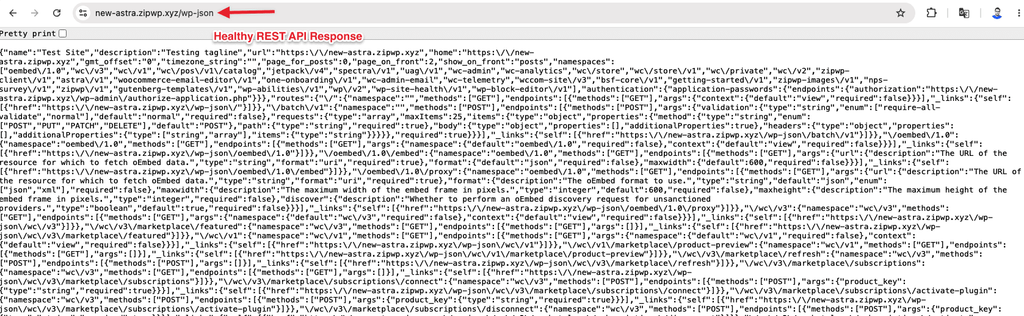
- Open a new browser tab and visit https://example.com/wp-json/, replacing example.com with your own domain.
- Look at what loads:
- A long page of JSON text means the REST API is reachable, so continue to Step 2.
- A message such as “Forbidden, you don’t have permission to access this resource”, a 403 page, or any other styled error page means something is blocking the REST API before WordPress can answer. Go to the sections “REST API Blocked at Server Level” and “A Plugin Is Restricting the REST API” below.

Step 2: Watch the Save Request
If the REST API loads normally, the next step is to watch the exact request that fails. Browser developer tools show the real response the editor receives.
- Go to Appearance > Widgets.
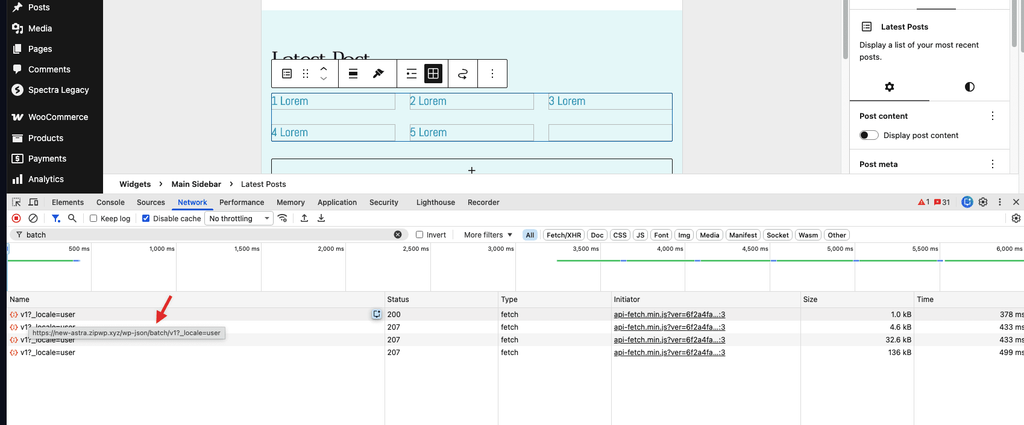
- Press F12 to open the browser developer tools, then select the Network tab.
- Make a small change to any widget and click Update.
- In the list of requests that appears, look for one containing batch/v1.
- Click that request and check its status code and response:
- A status of 403 means the request is being blocked, most often by a firewall or a security plugin.
- A status of 500 points to a PHP error during the save.
- A status of 200 with HTML instead of JSON means something is printing extra output into the response.
After noting the status code, use it to jump to the matching section below.
Common Issues
The sections below are ordered by how often each cause appears, starting with the most common.
Issue 1: REST API Blocked at Server Level
Symptom: https://example.com/wp-json/ shows a Forbidden or 403 page instead of JSON, or the batch/v1 request returns a 403.
Cause: A firewall, web application firewall, or security rule running on the hosting server is refusing requests to the REST API. This sits outside WordPress, so no plugin or theme setting will change it.
Fix:
- Confirm no security plugin is active on the site. If one is, test that possibility first using the next section.
- If no security plugin is involved, the block is on the hosting side.
- Contact your hosting provider and ask them to check for any rule blocking requests to /wp-json/. The section “What to Send Your Hosting Provider” below contains a message you can copy.
Expected outcome: Once the restriction is removed, https://example.com/wp-json/ returns JSON and widgets save normally.
Issue 2: A Plugin Is Restricting the REST API
Symptom: The REST API is blocked, and a security or performance plugin is active on the site.
Cause: Several security and optimization plugins include an option to disable or restrict the WordPress REST API. When that option is on, the Widgets screen cannot save.
Fix:
- Review the settings of any security or performance optimization plugin on the site and look for an option that disables, limits, or restricts the REST API.
- Turn that option off, then clear all caches.
- Return to Appearance > Widgets and try saving again.
- If you cannot find such an option, temporarily deactivate the plugin and test the save once more to confirm whether it is responsible.
Expected outcome: With REST API access restored, the widget save completes without the error.
Issue 3: Caching or a Reverse Proxy Is Interfering
Symptom: The error appears intermittently, or only on some pages, and the site uses server level caching or a CDN.
Cause: Caching layers are not meant to cache REST API requests. When one does, the editor can receive a stored or altered response instead of live JSON.
Fix:
- Clear the caching plugin cache, the server cache, and the CDN cache.
- In your caching plugin settings, exclude /wp-json/ from caching.
- If your host runs a server level cache such as Varnish, ask them to exclude /wp-json/ as well.
- Test the widget save again after every cache has been cleared.
Expected outcome: REST API requests reach WordPress directly and return live JSON.
Issue 4: A PHP Warning or Error Is Breaking the Response
Symptom: The batch/v1 request returns a 500 status, or returns a 200 status with visible text or HTML mixed into the response.
Cause: A PHP notice, warning, or fatal error generated by a plugin or theme is being printed into what should be a clean JSON reply. Even a single line of unexpected output is enough to break it.
Fix:
- Enable WordPress debug logging so errors are written to a file rather than displayed on screen.
- Reproduce the error by saving a widget again.
- Open the resulting debug.log file in the wp-content folder and look at the most recent entries.
- The file or plugin named in those entries identifies where the output is coming from.
Expected outcome: The log points to a specific plugin or theme file, which narrows the issue to a single component.
Issue 5: Incorrect Site Address or Permalink Settings
Symptom: The REST API returns a 404, or requests are redirected unexpectedly.
Cause: A mismatch between the WordPress Address and Site Address, or a broken permalink structure, can stop REST API routes from resolving.
Fix:
- Go to Settings > General and confirm that WordPress Address (URL) and Site Address (URL) are both correct and use the same protocol, either both http:// or both https://.
- Go to Settings > Permalinks.
- Click Save Changes without altering anything. This refreshes the rewrite rules.
- Test the widget save again.
Expected outcome: REST API routes resolve correctly and the save completes.
Issue 6: A Plugin or Theme Conflict
Symptom: None of the checks above identify a cause, and the error continues.
Cause: A conflict between the active theme and one or more plugins is interrupting the save request.
Fix:
- On a staging site, switch temporarily to a default WordPress theme such as Twenty Twenty-Four and try saving a widget.
- If the error disappears, the theme is involved. If it continues, the theme is not the cause.
- Restore your original theme, then deactivate all plugins and test the save once more.
- Reactivate the plugins one at a time, testing the widget save after each one, until the error returns. The plugin activated immediately before the error returns is the one causing the conflict.
Expected outcome: A single plugin or the theme is identified as the source, which makes the next step clear.
What to Send Your Hosting Provider
When the block is at server level, giving the host precise information saves a great deal of back and forth. Requests blocked by a firewall are often recorded in a separate security or proxy log rather than the standard access log, so it helps to say so directly.
Copy and adapt the following message:
Requests from my WordPress admin to https://example.com/wp-json/batch/v1 are being refused with a “Forbidden” response instead of the expected JSON. This endpoint is a standard part of WordPress and needs to be reachable for the widget editor to save.
Please check whether a firewall, web application firewall, mod_security, or reverse proxy rule is blocking requests to /wp-json/ on this site, and remove the restriction.
Please note that the request does reach the server, because the server is the source of the Forbidden response. If nothing appears in the site access log, the block is likely recorded in a separate security, WAF, or proxy log instead. Searching by the URL /wp-json/batch/v1 and by timestamp will be more reliable than searching by IP address.
Note: Allowlisting a single IP address is not a complete fix. The REST API needs to be reachable for any administrator from any connection, so the restriction should be removed rather than bypassed for one address.
Once the cause is resolved, visiting https://example.com/wp-json/ returns JSON, and saving a widget under Appearance > Widgets completes with a success message rather than the invalid JSON error.
Notes and Limitations
A few points are worth keeping in mind while working through this guide.
- The same error can appear when saving posts, pages, or other block editor content. The cause is usually identical, because all of them save through the REST API.
- Firewall rules, server configuration, and hosting level caching are managed by your hosting provider. Changes to those layers need to be made by them.
- Editing widgets through Appearance > Customize > Widgets uses a different save path and may continue to work while Appearance > Widgets fails. That difference is a useful clue, not a permanent workaround.
If the steps above do not resolve the error, reach out to the support team through the Astra contact page.
We don't respond to the article feedback, we use it to improve our support content.