- How To Install the Astra Theme
- System Requirement for Astra Theme
- What Is a Child Theme and How To Install It for Astra?
- Manually Install Astra via FTP
- How to Update Astra Theme Manually?
- Automatic Beta Updates for Astra
- Astra 4.2.0-beta.1 : Migrations & Backwards Compatibility
- Know More about Astra Beta Versions? How to Download and Use?
- How to Create a Multisite Network and Use Astra Child Theme On It
- Getting Started with Astra Pro Addon Plugin
- What is Astra Pro Add on?
- How to Install Astra Pro Plugin?
- How to Get License Key of Astra Pro?
- How to Activate Astra Pro Addon License?
- Getting error – The package could not be installed. The theme is missing the style.css stylesheet?
- Why Can’t I Access Astra Pro Features After Purchasing the Pro Version?
- Do Not See License Activation Form for Astra Pro Addon Plugin?
- How to Fix “Sorry, You Are Not Allowed To Access This Page” Error In Astra Pro
- How to Download Your Purchase Invoice
- How to Manage License on Store?
- How to Renew Yearly License?
- How Do License Upgrades Work?
- How To Update Your Payment Method?
- How to Process Refund Requests?
- How to Apply For Brainstorm Force Affiliate Program? (Become Astra Affiliate)
- Frequently Asked Questions – VIP Priority Support
- How do I check my Support Ticket History?
- How To Create a Header With Astra Header Builder
- How To Create Mobile Header With Astra Header Builder
- How To Create a Footer With Astra Footer Builder
- Why Is My Logo Blurry?
- Astra – Customize the Submenu
- FAQs – Astra Header/Footer Builder
- Elements in Header/Footer Builder With Astra Theme and Astra Pro
- Add Multiple Elements in Header Footer Builder
- FAQs – Astra Header/Footer Builder – Existing Customers
- How To Manage Sidebars in Free Astra Theme
- Understanding Sidebar Style in Astra Theme: Customizing Your Sidebar’s Look
- Sticky Sidebar
- Scroll To Top
- How to Display a Breadcrumb Anywhere within a Page or Post with Shortcode?
- Find the Way With Breadcrumbs
- How to Change the “HOME” String in Breadcrumbs
- How to Switch From Existing Breadcrumb to New Trail?
- How To Add Breadcrumbs in WordPress Website with Astra
- Astra WooCommerce Mini Cart Shortcode
- WooCommerce Module Overview
- How to Design a Product Catalog Page or Shop Page Using WooCommerce Module in Astra?
- Single Product WooCommerce
- Checkout Page WooCommerce
- Colors & Background Options For WooCommerce
- Typography Options for WooCommerce
- Off-Canvas Sidebar for WooCommerce Shop Page
- Quick View for WooCommerce Products
- How to Disable EDD Inbuilt Styling?
- How to Add Download Archive Pages to the Menu When Using Astra with EDD?
- How to Add EDD Cart in Header? (Old Astra Header)
- How to Display a Mini Cart Anywhere Using Shortcode? (Astra and EDD)
- EDD – Easy Digital Downloads Module Overview
- General – EDD Module Options
- Product Archive – EDD Module Options
- Single Product – EDD Module Options
- Checkout Page – EDD Module Options
- Footer Custom Text Helper Strings
- Does Astra support Beaver Themer Plugin?
- How To Disable Right Click in WordPress
- Increasing the PHP Memory Limit of Your Website
- How To Disable Header or Footer for a Landing Page or Post
- Where Does Astra Primary Color Setting Take Effect?
- How To Adjust the Width of Your Sidebar
- How to Update the Plugin Manually from WordPress Backend?
- Recommended Settings for Elementor and the Astra Theme
- Recommended Settings for Beaver Builder and the Astra Theme
- Astra Pro WP CLI Commands
- How to Increase PHP Time Limit for a Wordpress Site?
- Font Selection
- How to Bulk Edit Astra Meta Settings on Multiple Pages & Posts at Once?
- How to Disable Comments On A WordPress Site
- How to Build Advanced Websites Based on Custom Post Types with Toolset and Astra?
- What is a Favicon or Site Icon?
- How to use RGBA color picker?
- Backup Your Website in Less than 10 Minutes!
- Astra Options Page – All Settings Explained
- How to Remove Previous and Next Links From a Single Blog Post?
- How to Set Background Image for the Site?
- How to Display WooCommerce Sidebar on Top for Mobile Devices?
- How to Edit style.css in Child Theme?
- How to Activate License Key on Wordpress Multisite?
- How to add Google Analytics Code with the Astra Theme?
- How to Merge Above/Below Header Menu with a Primary Menu in Responsive?
- How to Refresh / Flush WordPress Permalinks?
- Not Receiving Update Notification for Astra Theme?
- Default Structured Data and Schema Markup in Astra Theme
- About Icons Font That Comes with Astra
- Sidebar / Container Options in Customizer for Learndash Not Working?
- How To Add Social Media Icons to Header
- How to Add Google Tag Manager Code to Astra?
- How to Download Older Version of Astra Theme or Astra Pro Addon plugin?
- LearnDash Shortcode to Add Profile Link
- LifterLMS Shortcode to Add Profile Link
- Search Shortcode to Add Search Box in Astra
- Color for Anchor Tag Inside Heading Tag
- How to Add Font Awesome Icons in Astra?
- Adding Custom Sidebar to the Theme with Lightweight Sidebar Manager plugin
- Google Fonts Not Loading with Astra
- How to Switch to Astra from Another Theme?
- How to Set up a WordPress Staging Site?
- How to Duplicate Custom Layouts and Page Headers?
- Display Submenu Just Below the Header
- How to Set Animation To The Sub Menu?
- How to Create Different Headers on Different Pages Using Astra?
- How to Add Custom Fonts in Astra?
- How to Disable EDD Inbuilt Styling?
- How to Add Download Archive Pages to the Menu When Using Astra with EDD?
- How to Add EDD Cart in Header? (Old Astra Header)
- How to Display a Mini Cart Anywhere Using Shortcode? (Astra and EDD)
- How to Disable the White Label Settings Permanently?
- Native AMP Support in Astra
- How to Change the Direction for Submenu Opening?
- How To Add RTL CSS via Child Theme?
- Browser Support by Astra
- Naming Convention for Astra 2.1.0 CSS File(s)
- How to Get Started with CSS File Generation
- What are the Best Astra Settings for Elementor?
- Get SkillJet Access – Brainstorm Force Customer
- How to Remove Featured Image Link on Archive Page?
- Astra Meta Settings
- Astra 2.2 for Existing Users
- How to Enable Astra Comment Box on Custom Post Types?
- How to Setup Custom Adobe Fonts (Typekit) Plugin?
- Usage Tracking
- New Color Controls in Astra theme & Astra Pro Addon
- How to Add Gutenberg Design Compatibility?
- Revamped Astra’s Customizer
- How to Remove the White Bars in the Safari Browser on iPhone X and Higher
- FAQs – Astra Pro 3.2 – Site Builder Inside Pages/Posts
- Optimize Astra HTML and CSS – For Existing Astra Users (Before v3.3)
- Astra’s Default Font Icons Replaced With SVG
- Modify Your PHP Configuration
- Responsive Editing With the Astra Theme
- Why Doesn’t Parallax Scrolling Work on Mobile?
- The Recommended Size for Featured Image
- How To Override Astra’s theme.json in Child Theme?
- Manage Astra Pro With Composer
- Improved Block Editor Experience with Astra
- Mixed Content
- Using Advanced Custom Fields with Astra
- Add a Wishlist button to Your WooCommerce Website
- How to create a correct format svg logo?
- How To Fix Not Being Able To Edit Submenu Colors, Above and Below Header?
- Fix Mobile Usability Issues on Astra
- How to Create a Button with a Link
- Does Astra Offer a Dark Mode Feature?
- How Astra is tuned for performance and is the fastest theme?
- How Do I Make My Astra Website Accessible?
- Introducing the new Disable Banner Area Meta-Based Option
- How to Add Images or Icons in the Navigation Menu
- How To Translate Site Builder With WPML?
- How To Make Astra Multilingual With WPML
- How to Translate Astra Strings with WPML?
- Translating the Advanced Custom Fields with WPML
- How to Turn Astra Website Multilingual with Polylang?
- How to Translate Categories, Tags, and Astra Strings with Polylang
- How to Turn Astra Website Multilingual with TranslatePress?
- How to Translate Astra Theme / Plugins in Your Own Language using GlotPress?
- Translate Site Builder Layouts Using Polylang
- Fix for – The PCLZIP_ERR_BAD_FORMAT (-10) Error
- Host Google Fonts Locally – Performance Is the Key
- Fix for – Parse error: syntax error, unexpected T_FUNCTION
- How to fix Fatal Error / White Screen of Death?
- Fix for- cURL error 51: SSL: no alternative certificate subject name matches target host name ‘websitedemos.net’
- ‘The preview could not be loaded’ Pop Up with Astra and Elementor
- Troubleshooting Steps ( with Health Check & Troubleshooting plugin )
- How to Deal with Update Issues in Astra Theme and Astra Pro Addon?
- Blog Featured Image Size Not Working / Error in Image Processing Library
- How to Change the Default Astra Strings
- Using Hooks in Astra
- How to Change the “Scroll To Top” Icon in Astra?
- Astra Pro WP CLI Commands
- How to Add Custom PHP Code?
- How to Disable the Loading of Astra’s Default Font File? (Astra.woff)
- Disable Featured Image on Posts, Pages, or Other Post Types
- Change Sidebar Widget Title Heading Tag
- Disable All Meta Settings of Page or Post by Default
- How to Change Website Logo Destination URL
- Remove Primary Navigation Menu with Hook
- Change the Astra Header Breakpoint Width
- How to Disable Primary Header?
- Add Title attribute to Header Background Image as a Substitute for Alt Text
- How to Change HTML tag for Site Title and Tagline?
- How to Change the Heading Tag for the Page/Post Titles?
- How to Change the “Search Results For” String
- Change Placeholder for Search Box (Old Astra Header)
- How to Change Previous and Next Link Text from a Single Blog Post?
- How to Remove Featured Image Link on Archive Page?
- Filter to Remove Link From Featured Images on Blog Page
- Blog Featured Image Size Not Working / Error in Image Processing Library
- Filters to Support CPTs for Blog Meta and Single Blog Meta
- How To Change Navigation Links Text for a Blog Archive?
- How to Display the Post Category as a Related Posts Title?
- Change “Leave A Comment” title tag
- Customizing Social Profile Links for Individual Authors in Single Posts
- Change Woocommerce Out of Stock Text
- How to Disable Product Quantity (Plus-Minus) Buttons?
- How to Modify/Change the Quick View text?
- Filter to Add Global Button Settings Support for WooCommerce Buttons
- Change the “Shopping Cart” Text for WooCommerce & EDD Mobile Header Cart
- Fix Woocommerce Cart Becoming Transparent With Header Builder
- Restrict Search Results to WooCommerce Products Only
- How To Hide Quantity Number When the Woocommerce Cart Is Empty?
- Remove Astra Customization for WooCommerce
- How to Add Custom CSS Code Without Editing Theme Files?
- How to Highlight a Certain Menu Item?
- How to Design Bullets & Lists?
- Dim Content on Menu Hover
- How to add custom CSS and JavaScript to Astra theme
- How To add Custom CSS for Specific Pages
- Mobile Breakpoint Causes Issues with Transparent Header Menu Color
- How to Create Custom CSS using Inspect Element Tool?
- Display Coupon Field on Checkout & Cart Pages
- Fix Swap Sections Not Working on Mobile (Old Astra Header)
- How to Remove Google Fonts Suggestions in Astra Theme?
- Remove default stretched block layout spacing
- How to Change the Logo on Specific Pages?
- How to remove horizontal & vertical gallery layouts from a single product page?
- Introducing New Filter to Enable/Disable Rank-Math Theme Support
- Enable/Disable YouTube videos from Astra admin dashboard
- How to Fix the Line Height Unit being converted to “EM”?
- How to Change WordPress Post labels to Projects
Adding Custom Sidebar to the Theme with Lightweight Sidebar Manager plugin
Sometimes it is required to display a suitable, separate sidebar on certain pages on the website. Apart from the default sidebar provided by the theme, you can create a custom sidebar and display it on particular pages with display rules.
To add custom sidebar you need to use Lightweight Sidebar Manager plugin, which is free and available on WordPress repository.
This plugin will replace the theme’s default sidebar with the custom sidebar. It also allows replacing widget areas in header or footer. If you have plugins that provide their own widget area like WooCommerce, this plugin allows replacing those widget areas as well.
Below are the steps to use Lightweight Sidebar Manager plugin –
1. Install and activate the plugin on a WordPress site.
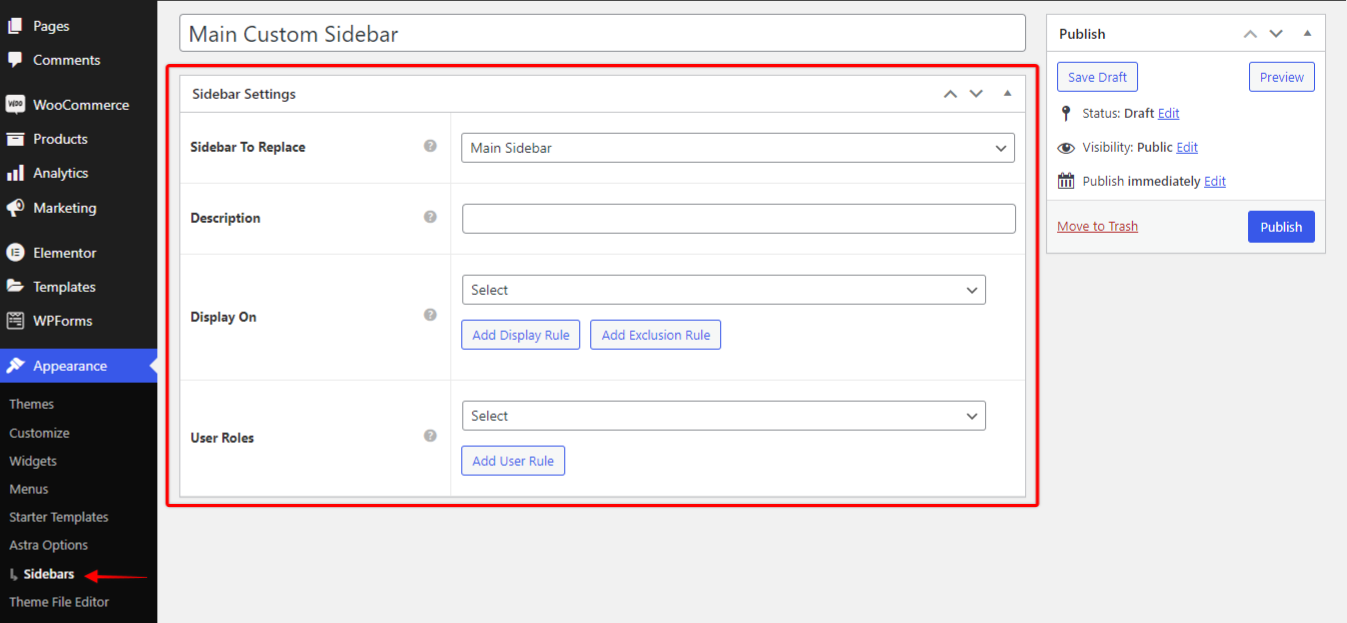
2. Settings can be found under Appearance > Sidebars.
3. Add New sidebar and enter a title for your custom sidebar.
4. Fill sidebar settings.
- Sidebar To Replace: Select the sidebar or widget you wish to replace. All available sidebar and widget areas in the theme will be listed here.
- Description: Add description for your custom sidebar. This is optional.
- Display On: Choose whether to display the custom sidebar on the entire website or on specific pages/posts. You can even exclude a particular page/post by adding them to the Exclusion Rule.
- User Roles: You can decide a user role for which custom sidebar should be visible. For excluded users, the default sidebar set with the theme will be visible.
5. Above steps will register the custom sidebar on site. This custom sidebar will appear under Appearance > Widgets.
6. Add widgets to this custom sidebar. Drag and drop the widgets you want to add to the custom sidebar.
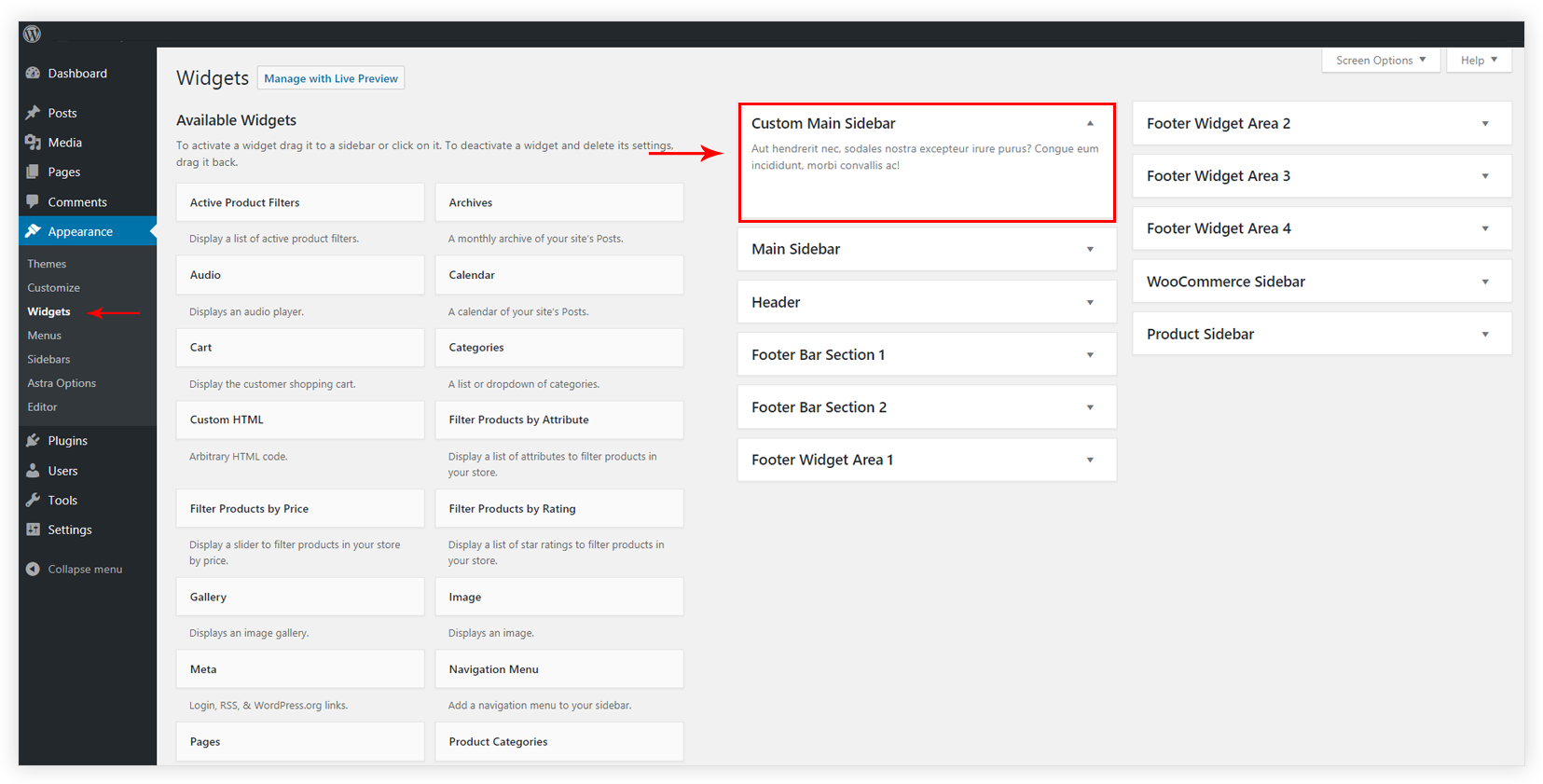
7. That’s it! Your custom sidebar will appear on pages/post/widget areas you selected with display rules.
Check following things if you are not able to see custom sidebar –
1. Default sidebar is enabled from the theme. As custom sidebar replaces default sidebar, it needs to be enabled from the theme.
2. If you have selected the sidebar to display on the header/ footer, check if the widget area is enabled for header/footer. Custom sidebar replaces the widget area in the header/footer so you need to enable it.
Using Lightweight Sidebar Manager plugin with Astra theme
Below is the example that shows how to add a custom sidebar to Astra primary header –
1. Install and activate the Astra theme and Lightweight Sidebar Manager plugin.
2. As we need to set a custom sidebar in the primary header, we need to add the widget area in the header. To add widget area navigate to Appearance > Customize > Header > Primary Menu > Last Item in Menu and select Widget from the list.
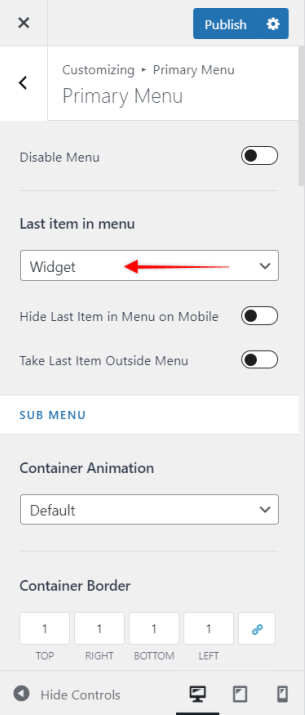
3. Now follow the steps that are mentioned above to use Lightweight Sidebar Manager plugin.
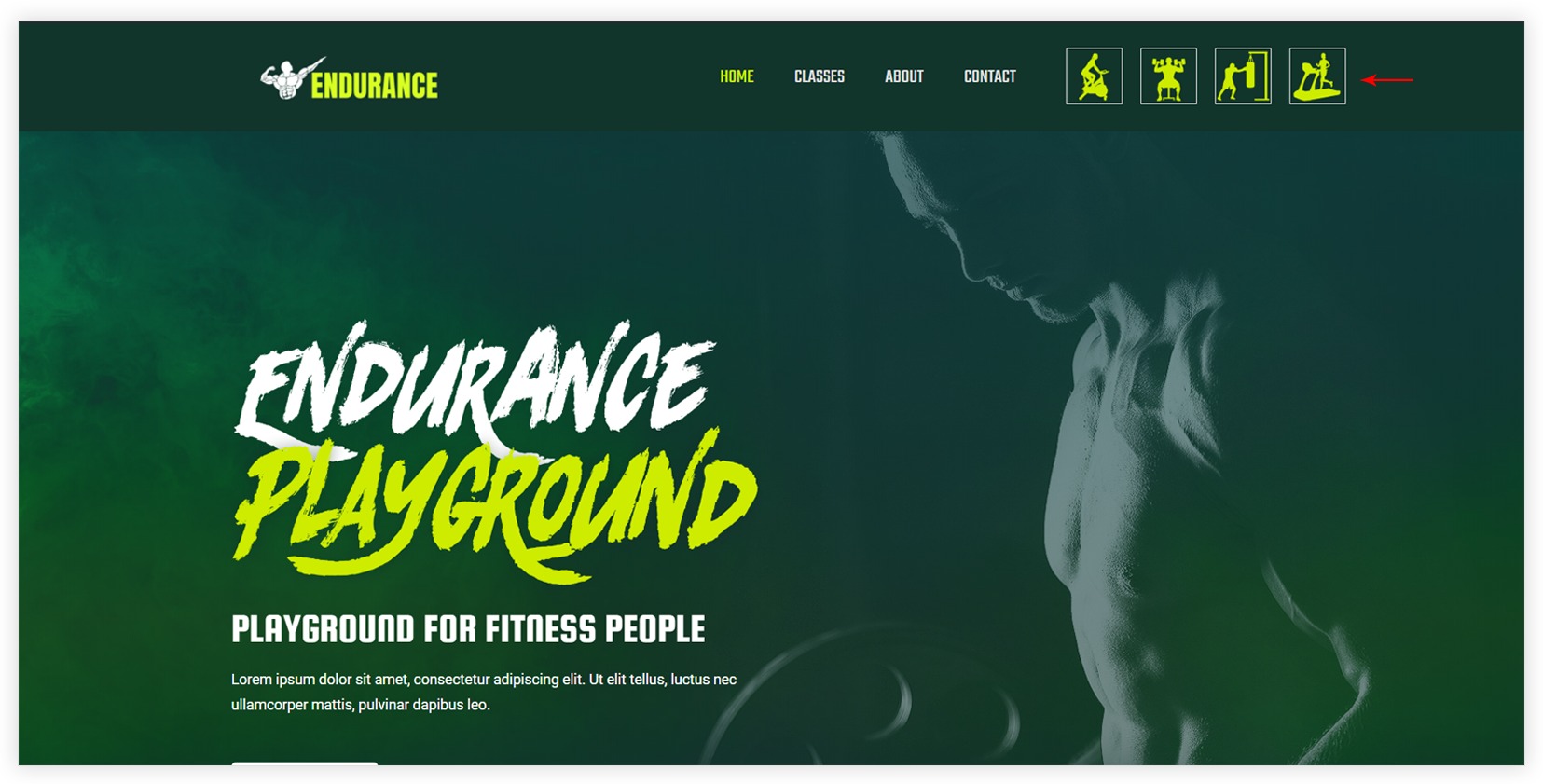
4. This will add a custom sidebar to Astra Header. For the demo, we have added image gallery widget to the custom sidebar as shown in the screenshot below –
5. Similarly, you can add a sidebar to the footer and other sections of Astra header.
We don't respond to the article feedback, we use it to improve our support content.